Introduction
Notepad is one of the oldest and simplest text editors that comes pre-installed with Microsoft Windows. For decades, it has maintained the same plain white background with black text. Many users often wonder: “Can I change the theme in Notepad? Is there a dark mode or colorful theme available?”
Thank you for reading this post, don't forget to subscribe!The short answer is: Yes, but with limitations.
In this article, we’ll explain whether Notepad supports themes, how to enable dark mode, and what options you have if you want to customize the look and feel of Notepad.
Does Notepad Have Themes by Default?
Traditionally, Notepad has always been a minimal, no-frills application. Until Windows 10, Notepad did not support themes at all. Users were stuck with the classic white background and basic font.
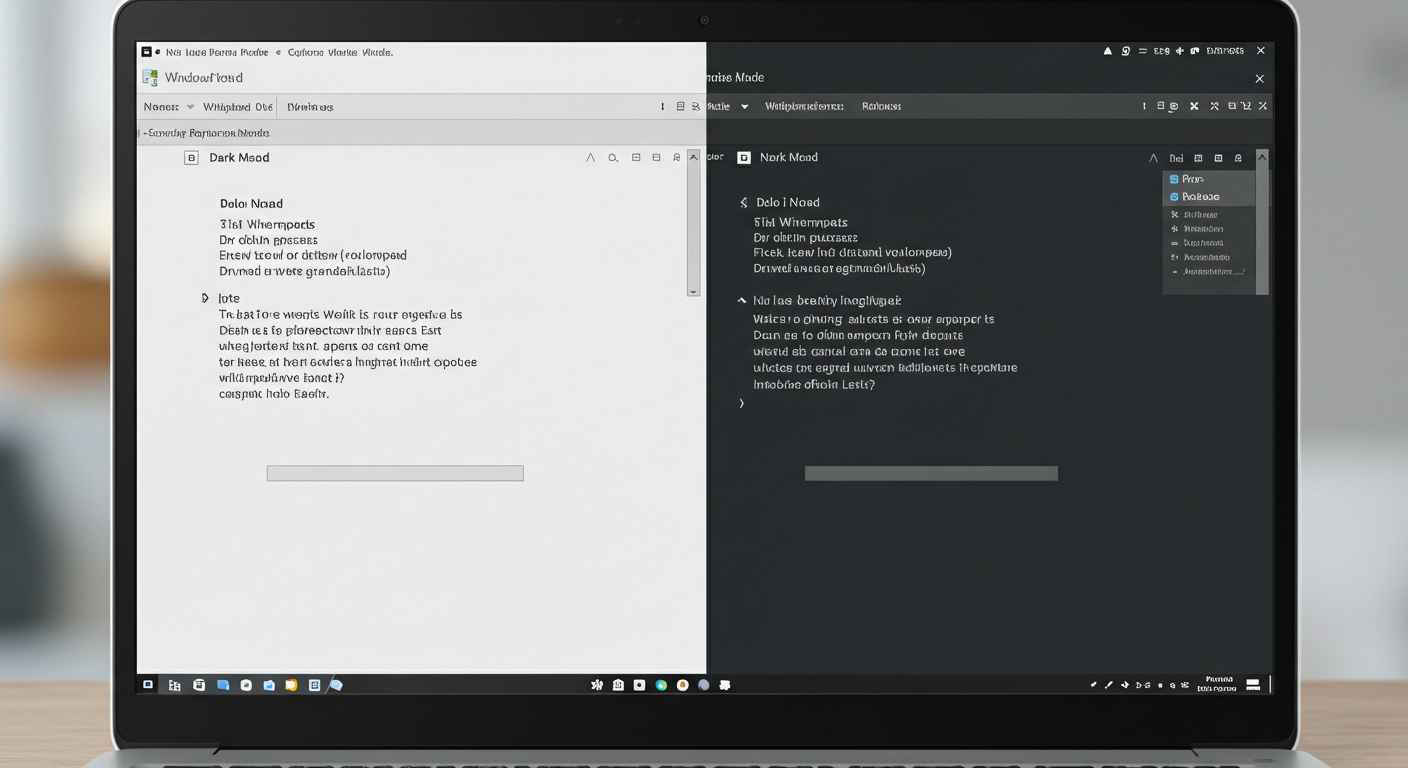
However, in Windows 10 (latest updates) and Windows 11, Microsoft introduced Dark Mode and some customization options. While it’s not as advanced as modern text editors like Visual Studio Code or Sublime Text, it still makes the Notepad experience more comfortable for users.
So, technically:
- Older Windows Versions (Windows 7, 8, early 10): No built-in theme support.
- Windows 10 (latest builds) and Windows 11: Dark Mode and basic customization are available.
How to Enable Dark Mode in Notepad (Windows 11)
Windows 11 Notepad has a built-in Dark Mode. Here’s how you can enable it:
Step 1: Open Notepad
- Press
Windows + Sand search for Notepad.
Step 2: Go to Settings
- Once Notepad opens, click on the gear icon (⚙️) in the top-right corner to open settings.
Step 3: Choose App Theme
- In the Settings menu, you will see an option called App Theme.
- Select one of the following:
- Light → Classic white theme.
- Dark → Dark background with light text.
- Use system setting → Automatically matches your Windows theme.
👉 That’s it! You now have a Notepad with Dark Mode enabled.
Dark Mode in Windows 10 Notepad
In Windows 10, Notepad does not have a dedicated Dark Mode. But you can enable it indirectly:
Method 1: Use Windows Dark Mode
- Go to Settings → Personalization → Colors.
- Choose Dark as your default Windows app mode.
- This will apply dark mode to many system apps, including Notepad (in newer builds).
Method 2: Registry Tweaks or Third-Party Tools
- For older Windows 10 versions, you may need to use registry modifications or external apps like Notepad++ (which supports custom themes).
How to Change Fonts and Colors in Notepad
Even if you don’t have full themes, Notepad still allows some customization:
- Open Notepad.
- Go to Format → Font.
- Choose your preferred:
- Font type (Courier, Consolas, etc.).
- Font style (Regular, Bold, Italic).
- Font size (small, medium, large).
👉 While this is limited compared to full themes, changing the font can improve readability.
What If You Want More Themes? (Alternatives to Notepad)
If you are looking for colorful, customizable themes beyond Dark Mode, then you will need to use Notepad alternatives like:
- Notepad++
- Free, open-source text editor.
- Supports multiple themes (dark, light, colorful).
- You can even download community-made themes.
- Visual Studio Code (VS Code)
- Powerful editor with hundreds of themes available in its marketplace.
- Perfect for coders and writers who want advanced features.
- Sublime Text / Atom
- Popular editors with theme customization support.
👉 These alternatives are especially useful for programmers, students, and professionals who want a modern editing experience.
Pros and Cons of Notepad’s Theme Options
✅ Pros
- Built-in Dark Mode (Windows 11).
- Easy to switch themes (light/dark/system).
- Lightweight and distraction-free.
❌ Cons
- Limited options compared to modern editors.
- No support for colorful syntax highlighting.
- Older Windows versions have no theme support.
Tips for Better Theming in Notepad
- If you only need Dark Mode → Stick with Windows 11 Notepad.
- If you want advanced themes → Install Notepad++ or VS Code.
- For quick customization → Adjust fonts and system-wide dark mode.
- Always keep Windows updated → New features in Notepad come through Windows updates.
FAQs About Notepad Themes
Q1: Can I install custom themes in Notepad?
👉 No, classic Notepad doesn’t support custom themes. You need Notepad++ or other editors for that.
Q2: Does Notepad support syntax highlighting (color coding for code)?
👉 No, Notepad only supports plain text. For syntax highlighting, use Notepad++ or VS Code.
Q3: Is Dark Mode available in Windows 7 or 8 Notepad?
👉 No, Dark Mode is only available in newer Windows versions (Windows 10 latest builds and Windows 11).
Conclusion
So, is it possible to have themes in Notepad?
Yes, but only in a limited way. With Windows 11, Notepad finally supports Dark Mode, making it more comfortable to use for long writing or coding sessions. If you need advanced themes, colorful syntax highlighting, or custom designs, then you should try alternatives like Notepad++ or Visual Studio Code.
In short, Notepad is perfect for simple tasks, but for personalization and theme variety, modern text editors are the better choice.