Introduction
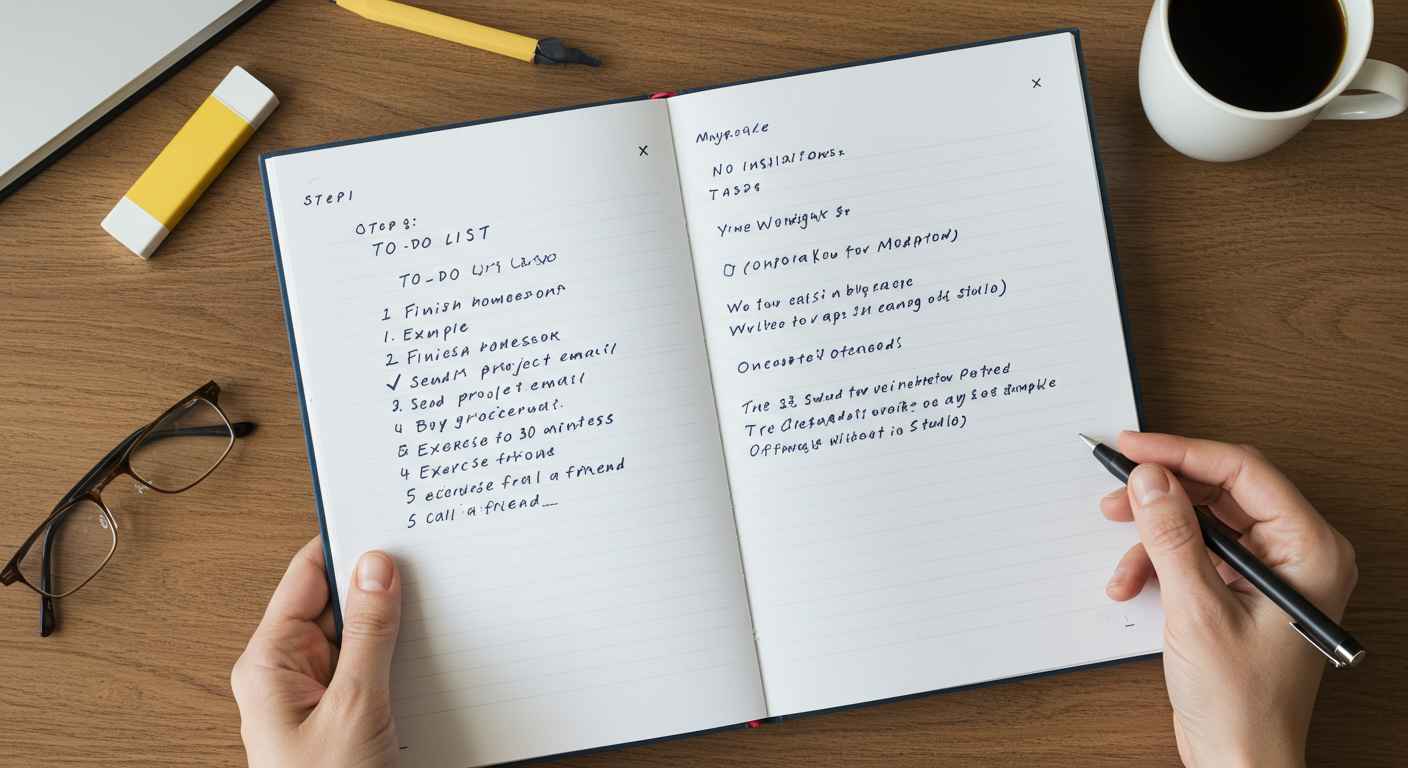
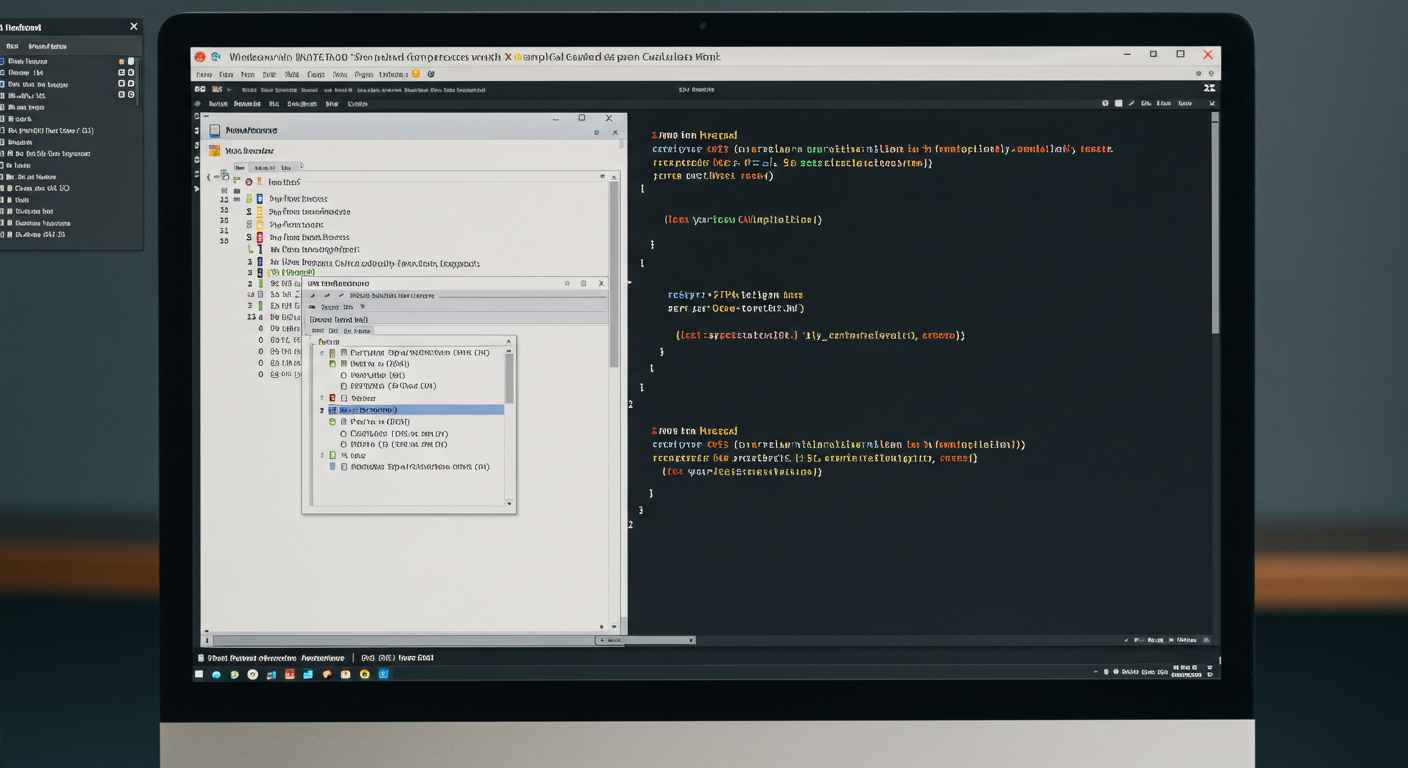
Notepad is often considered just a plain text editor, but it can do a lot more than basic note-taking. One of the most interesting tricks you can try is creating a simple calculator using Notepad.
Thank you for reading this post, don't forget to subscribe!This trick works because Notepad allows you to write and save files with different extensions (like .bat or .vbs) that can run small programs. In this tutorial, we will show you how to make a working calculator using Notepad step by step.
Why Use Notepad for a Calculator?
- Learning Purpose: Helps beginners understand coding basics.
- Fun Project: Makes Notepad more interesting.
- Lightweight Tool: No extra software required.
- Quick Practice: Great for students learning automation or scripting.
Method 1: Calculator Using Batch File (.bat)
Batch files are simple scripts that Windows can execute. By writing a small script in Notepad and saving it as .bat, you can create a working calculator.
Step-by-Step Guide
- Open Notepad
- Press
Windows + R, typenotepad, and press Enter.
- Press
- Copy the Code Below
@echo off
title Simple Calculator
:menu
cls
echo ==============================
echo        SIMPLE CALCULATOR
echo ==============================
echo.
echo 1. Addition
echo 2. Subtraction
echo 3. Multiplication
echo 4. Division
echo 5. Exit
echo.
set /p choice=Choose an option (1-5):

if %choice%==1 goto add
if %choice%==2 goto sub
if %choice%==3 goto mul
if %choice%==4 goto div
if %choice%==5 exit
goto menu

:add
set /p a=Enter first number:
set /p b=Enter second number:
set /a result=%a%+%b%
echo Result = %result%
pause
goto menu

:sub
set /p a=Enter first number:
set /p b=Enter second number:
set /a result=%a%-%b%
echo Result = %result%
pause
goto menu

:mul
set /p a=Enter first number:
set /p b=Enter second number:
set /a result=%a%*%b%
echo Result = %result%
pause
goto menu

:div
set /p a=Enter first number:
set /p b=Enter second number:
if %b%==0 (
   echo Division by zero is not allowed!
) else (
   set /a result=%a%/%b%
   echo Result = %result%
)
pause
goto menu
- Save the File
- Go to File → Save As.
- Enter file name like
calculator.bat. - In Save as type, select All Files.
- Save it on Desktop.
- Run the File
- Double-click
calculator.bat. - A command prompt window will open with calculator options.
- Double-click
Method 2: Calculator Using VBScript (.vbs)
Another interesting way is to use VBScript. This will create a calculator with input boxes.
Step-by-Step Guide
- Open Notepad
- Copy the Code Below
Dim num1, num2, operation, result
num1 = InputBox("Enter first number:")
operation = InputBox("Enter operation (+, -, *, /):")
num2 = InputBox("Enter second number:")

If operation = "+" Then
    result = num1 + num2
ElseIf operation = "-" Then
    result = num1 - num2
ElseIf operation = "*" Then
    result = num1 * num2
ElseIf operation = "/" Then
    If num2 = 0 Then
        MsgBox "Error: Division by zero!"
        WScript.Quit
    Else
        result = num1 / num2
    End If
Else
    MsgBox "Invalid operation!"
    WScript.Quit
End If

MsgBox "Result: " & result
- Save the File
- Go to File → Save As.
- Name it
calculator.vbs. - Select All Files and click Save.
- Run the File
- Double-click
calculator.vbs. - It will ask for numbers and operation.
- Finally, it will show the result in a popup box.
- Double-click
Tips for Better Results
- Always save the file with correct extension (
.bator.vbs). - Do not save in .txt format, otherwise it won’t work.
- Try adding more operations like modulus (
%) if you are comfortable editing code. - Use VBScript if you want a graphical popup calculator.
- Use Batch file if you want a text-based command line calculator.
Common Errors and Fixes
- File not opening? → Make sure you saved as
All Files, not.txt. - Division error? → In batch, dividing by zero gives error. Use the provided check.
- Invalid operation? → Ensure you enter correct operator (+, -, *, /).
- Code not working? → Check spacing and special characters while copying.
Benefits of Learning This Trick
- Improves understanding of basic programming.
- Great small project for students and beginners.
- Shows how Notepad can be used beyond writing notes.
- Helps in problem-solving and logical thinking.
Conclusion
Creating a calculator in Notepad may sound surprising, but with a little coding, you can make a fully functional one. The batch file method is text-based, while VBScript gives you a graphical interface. Both are simple and fun to try.
If you want to practice coding basics without installing any heavy software, Notepad is the perfect starting point.