Introduction
Notepad is a lightweight and simple text editor included with every version of Microsoft Windows. It is mainly used for writing quick notes, editing configuration files, or creating scripts. By default, Notepad displays text in a single line until you press the Enter key. This can make it difficult to read long sentences or paragraphs because you constantly need to scroll horizontally.
Thank you for reading this post, don't forget to subscribe!This is where the Word Wrap feature comes in. Word Wrap automatically moves text to the next line without requiring you to press Enter. It makes your text look neat and easy to read. In this article, we will explain what Word Wrap is, why it is useful, and how to enable it step by step in Notepad.
What is Word Wrap in Notepad?
Word Wrap is a setting in Notepad that ensures long lines of text automatically wrap to the next line within the Notepad window. Without Word Wrap, text continues in a single line until you manually press Enter or scroll horizontally.
For example:
- Without Word Wrap: A paragraph may extend beyond the window width, requiring you to scroll to read it.
- With Word Wrap: The same paragraph automatically adjusts and fits within the Notepad window.
👉 In short, Word Wrap makes text easier to read, edit, and manage.
Benefits of Using Word Wrap
Enabling Word Wrap in Notepad has several advantages:
- Better Readability – You don’t need to scroll sideways to read long sentences.
- Easy Editing – While writing notes or code comments, text stays within view.
- Time Saving – No need to press Enter at the end of each line.
- Clean Layout – Text looks organized and readable.
- Beginner Friendly – New users can easily focus on content without worrying about alignment.
How to Enable Word Wrap in Notepad (Step by Step)
Follow these steps to turn on Word Wrap in Notepad:
Step 1: Open Notepad
- Click the Start Menu or press
Windows + S. - Type Notepad and press Enter.
Step 2: Open the Format Menu
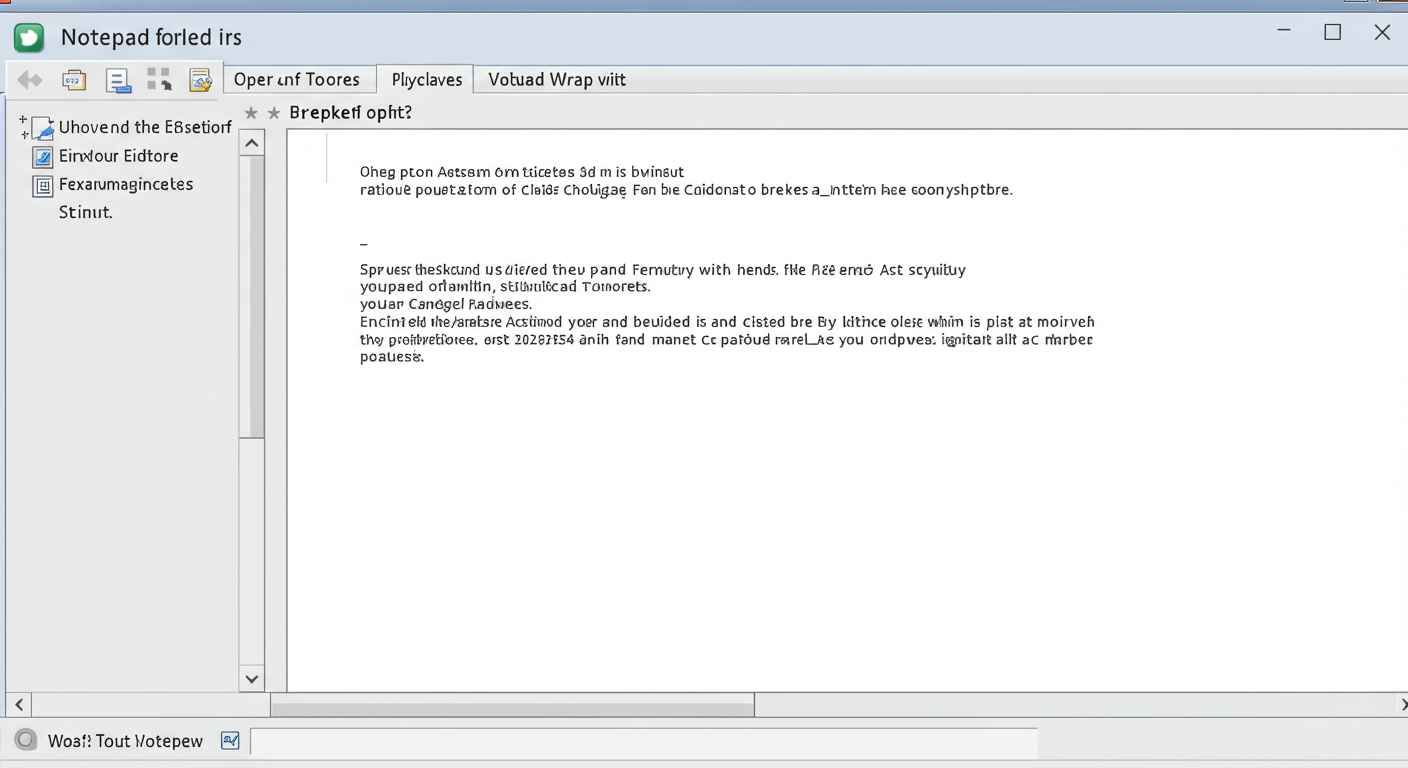
- Once Notepad is open, look at the menu bar at the top.
- Click on the Format option.
Step 3: Enable Word Wrap
- In the Format menu, you will see the Word Wrap option.
- If it is unchecked, click on it to enable.
- Once enabled, a tick mark ✔️ will appear next to Word Wrap.
Step 4: Test Word Wrap
- Type or paste a long sentence in Notepad.
- If Word Wrap is working, the sentence will automatically adjust to the next line without horizontal scrolling.
How to Disable Word Wrap
Sometimes, you may want to disable Word Wrap, especially if you are editing log files or working with structured text. To disable it:
- Go to Format → Word Wrap again.
- Click on it to uncheck ✔️.
- Now, text will extend in a single line and require horizontal scrolling.
Word Wrap in Newer Versions of Windows (Windows 10 & 11)
In Windows 10 and Windows 11, Notepad has been updated with a modern design. Word Wrap is still present but slightly improved:
- In Windows 11 Notepad, Word Wrap is enabled by default.
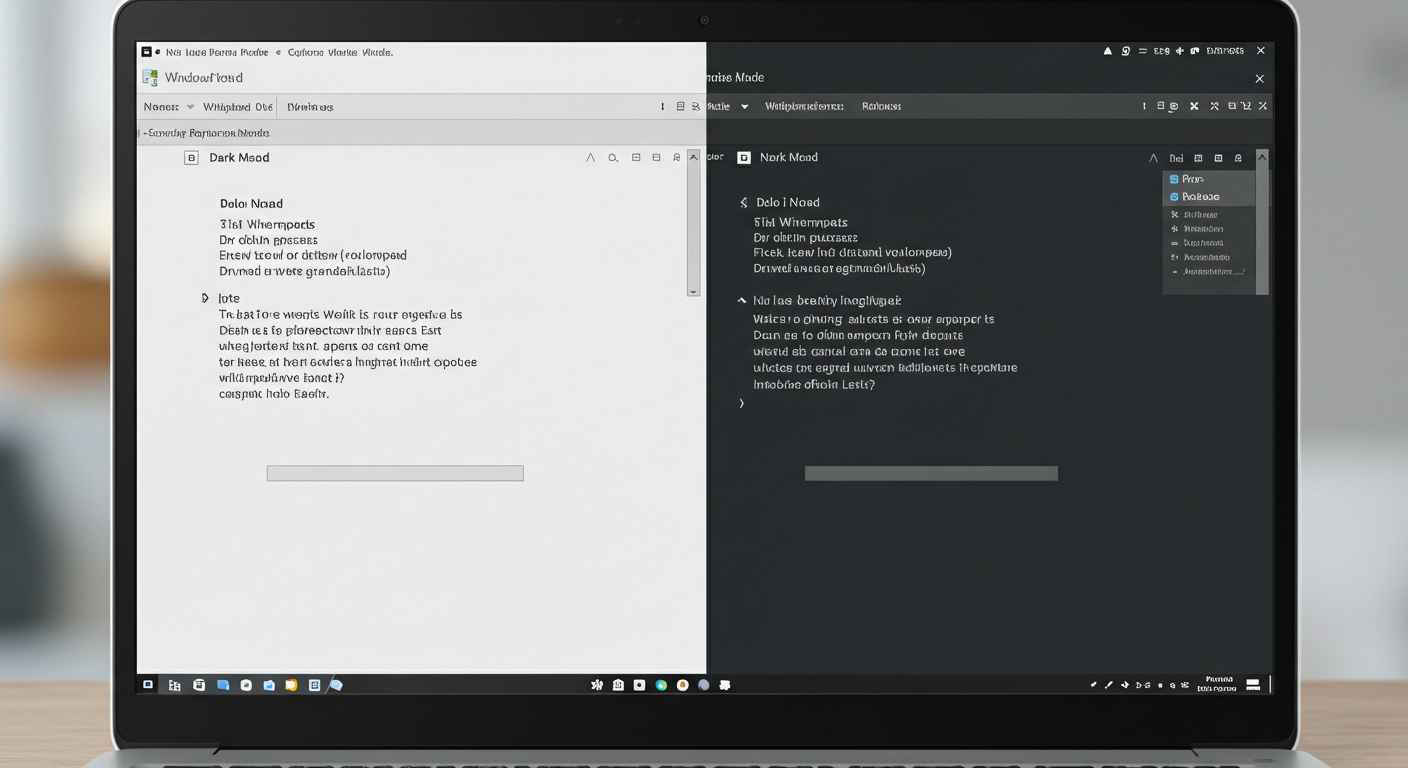
- You can still toggle it on or off by going to the View menu instead of Format in some versions.
- This small change makes it easier for users to read large text files without extra effort.
Common Issues with Word Wrap in Notepad
- Text Alignment Issues
- Sometimes Word Wrap makes text look “broken” if you’re dealing with structured content like logs or CSV files.
- Solution: Turn off Word Wrap when working with data-heavy files.
- Copy-Paste Formatting
- When you copy wrapped text from Notepad into another editor, it may appear with line breaks.
- Solution: Use Notepad without Word Wrap if you want to preserve exact formatting.
- Word Wrap Not Saving
- In older Windows versions, Notepad doesn’t remember Word Wrap settings after you close the app.
- Solution: You need to enable Word Wrap again each time you reopen Notepad (unless you are on Windows 11, where it saves settings automatically).
When Should You Use Word Wrap?
- Yes, enable Word Wrap when:
- Writing essays, notes, or articles.
- Reading text files that have long sentences.
- Editing configuration or documentation files for easy readability.
- No, disable Word Wrap when:
- Working with logs, data files, or code where exact formatting matters.
- You want each line to stay exactly where it is.
Word Wrap vs. Manual Line Breaks
- Word Wrap: Text automatically shifts to the next line for display only. It does not insert any actual line breaks in the file.
- Manual Line Breaks (Enter key): Inserts a permanent new line in the text file.
👉 This means Word Wrap only changes the view of your file, not the structure.
Conclusion
Word Wrap is a simple but powerful feature in Notepad that improves readability and saves time. By enabling Word Wrap, you don’t need to scroll sideways or manually insert line breaks. Whether you are writing notes, preparing text, or just reading long documents, this feature can make your work easier and more efficient.
For quick notes and daily writing tasks, keeping Word Wrap enabled is highly recommended. However, if you’re working with structured data or logs, you may want to turn it off.