Introduction
Notepad is one of the simplest text editors available on Windows. By default, it comes with a white background and black text, which can sometimes feel boring or uncomfortable to the eyes, especially if you work for long hours.
Thank you for reading this post, don't forget to subscribe!Many users wonder if they can change the background color in Notepad. The short answer is: the classic Notepad app in Windows does not allow direct color customization. But don’t worry—there are multiple workarounds and alternatives you can use to enjoy a customized background color, such as dark mode, third-party editors, and registry tweaks.
In this article, we’ll guide you step by step on how to change the background color in Notepad (and its alternatives).
1. Can You Change Background Color in Notepad Directly?
Unfortunately, the original Notepad app has very limited customization options. It only allows you to change the font style, size, and font type, but not the background or text color.
However, you can still make your Notepad experience more comfortable by:
- Enabling Dark Mode (available in Windows 10/11).
- Using third-party Notepad alternatives that allow full customization.
- Applying registry tweaks or themes.
2. Method 1: Enable Dark Mode in Windows Notepad
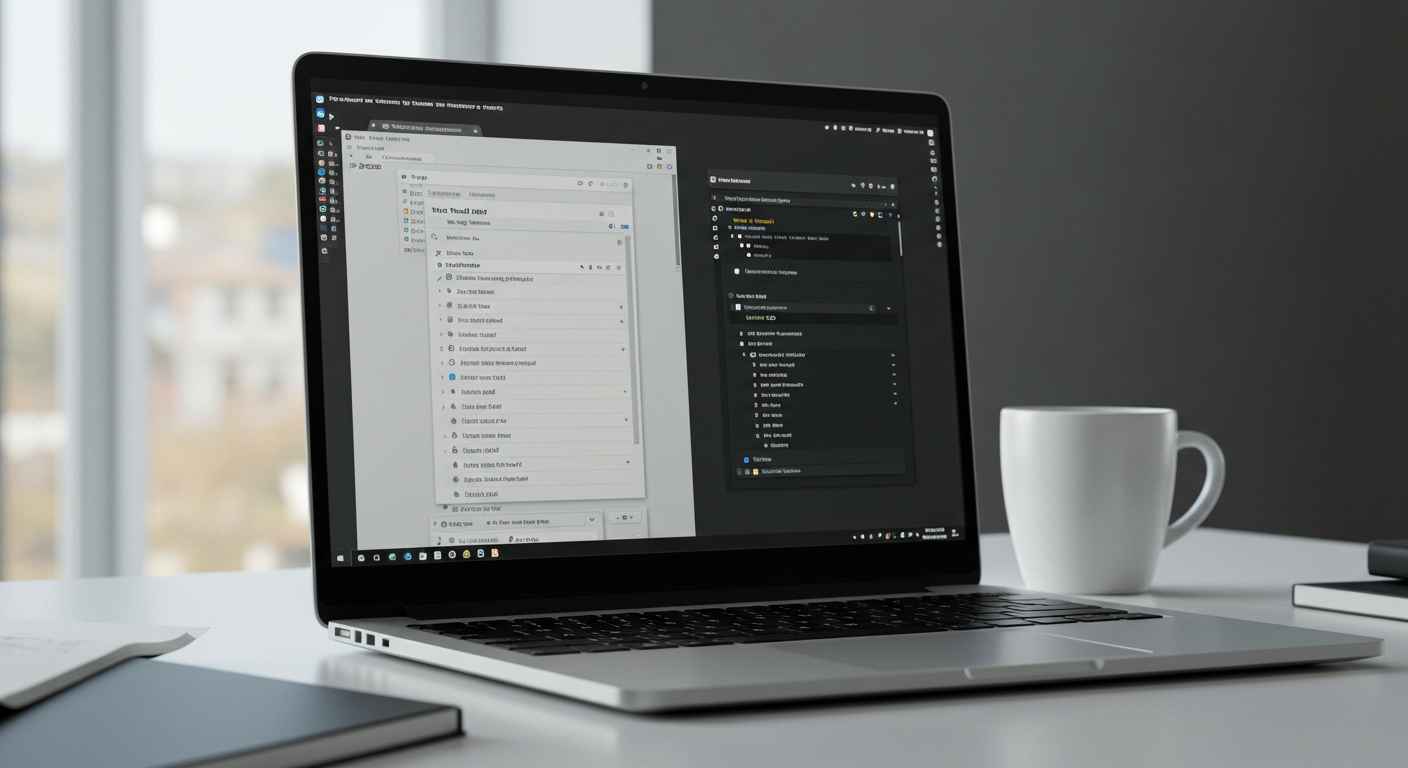
Windows 10 and Windows 11 come with a built-in dark mode, which automatically changes the background color of Notepad to black or dark gray.
Steps to Enable Dark Mode:
- Open the Settings app in Windows.
- Go to Personalization > Colors.
- Under Choose your color, select Dark.
- Open Notepad again – the background will now appear dark with light text.
👉 This is the easiest way to change the background color in Notepad without installing extra software.
3. Method 2: Change Notepad Background Color Using Registry Tweak
If you are comfortable with advanced settings, you can use the Windows Registry to modify Notepad’s appearance.
⚠️ Warning: Editing the registry incorrectly can cause system problems. Always create a backup before making changes.
Steps:
- Press Win + R, type
regedit, and hit Enter. - Navigate to:
HKEY_CURRENT_USER\Control Panel\Colors - Look for values like
WindowandWindowText.Windowcontrols the background color.WindowTextcontrols the text color.
- Double-click and enter new RGB values (for example,
0 0 0for black). - Restart your PC for changes to apply.
👉 This method affects all Windows apps that use the same settings, not just Notepad.
4. Method 3: Use Third-Party Notepad Alternatives
If you want full freedom to customize colors, themes, and fonts, then switching to a Notepad alternative is the best solution.
Popular Alternatives:
- Notepad++ – Free, supports syntax highlighting, customizable background and text colors.
- Sublime Text – Lightweight, supports dark mode and custom themes.
- Visual Studio Code (VS Code) – Free, powerful editor with full theme support.
- Atom – Open-source editor with community themes.
👉 With these apps, you can set any background color (dark, light, or even custom themes) easily.
5. Method 4: Change Background Color in Notepad++
If you choose Notepad++ as your alternative, here’s how to change the background color:
- Download and install Notepad++.
- Open the app and go to Settings > Style Configurator.
- Under Select Theme, choose from built-in dark/light themes.
- To customize manually:
- Pick a language (e.g., Global Styles).
- Choose Background Color and set your preferred color.
- Click Save & Close.
👉 Now your Notepad++ editor will look exactly how you want.
6. Why Change Background Color?
Changing background color in Notepad is not just about looks—it has practical benefits too:
- Reduce eye strain (especially at night).
- Improve focus by using a distraction-free theme.
- Boost productivity by choosing colors that feel comfortable.
- Personalization to make your workspace unique.
7. Quick Comparison – Classic Notepad vs Notepad++
| Feature | Notepad | Notepad++ |
|---|---|---|
| Background Color | White only (Dark Mode in Win 10/11) | Fully customizable |
| Text Color | Black only | Any color |
| Themes | None | Multiple themes (light/dark/custom) |
| Ease of Use | Very simple | Slightly advanced |
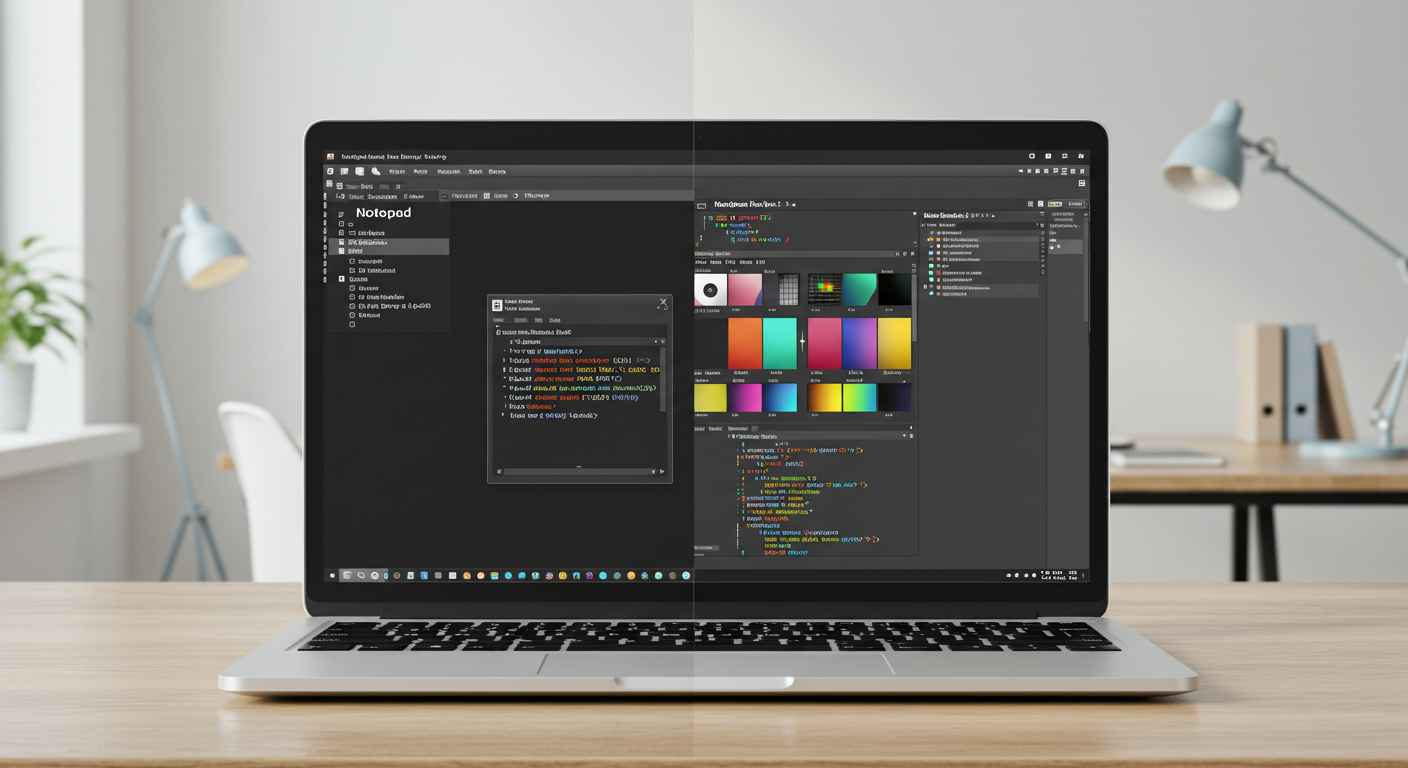
| Best For | Quick notes, plain text | Coding, customization, advanced writing |
Conclusion
While the classic Notepad does not allow direct background color changes, you can still enjoy a customized look by enabling dark mode or using Notepad alternatives like Notepad++, Sublime Text, or VS Code.
If you want simple customization, Dark Mode is enough. But if you want advanced themes and control, Notepad++ is the best choice.