Introduction
Microsoft Notepad is one of the most basic yet widely used text editors in Windows. It is lightweight, fast, and perfect for writing notes, editing scripts, or opening simple text files. However, its default look—plain white background and standard font—can feel dull.
Thank you for reading this post, don't forget to subscribe!The good news is, you can customize fonts and layout in Notepad to make your writing experience more comfortable. While Notepad doesn’t offer advanced customization like Microsoft Word or Notepad++, it still provides enough settings to improve readability and appearance.
In this guide, we’ll explain step by step how to change fonts, adjust layout settings, and explore alternatives if you want more control over customization.
1. Why Customize Fonts and Layout in Notepad?
Customizing fonts and layout is not just about looks—it directly impacts your productivity and comfort.
- Improved readability – Larger or clearer fonts reduce eye strain.
- Better focus – Choosing a clean font style helps you focus on content.
- Personalization – You can make Notepad look the way you want.
- Accessibility – Users with vision problems can increase font size.
2. How to Change Font in Notepad
By default, Notepad uses a simple font like Consolas or Lucida Console depending on your Windows version. But you can change it to your preference.
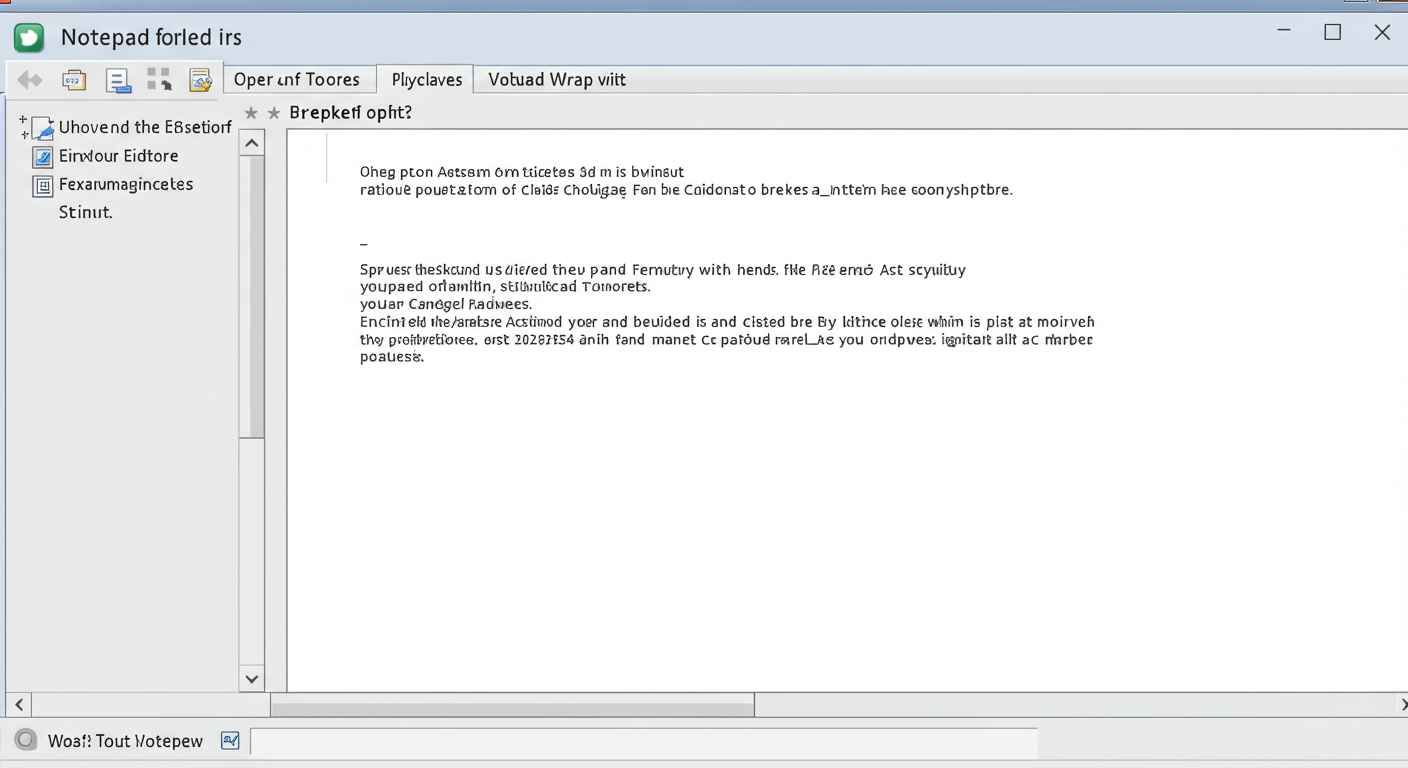
Steps to Change Font in Notepad:
- Open Notepad.
- Click on the Format menu.
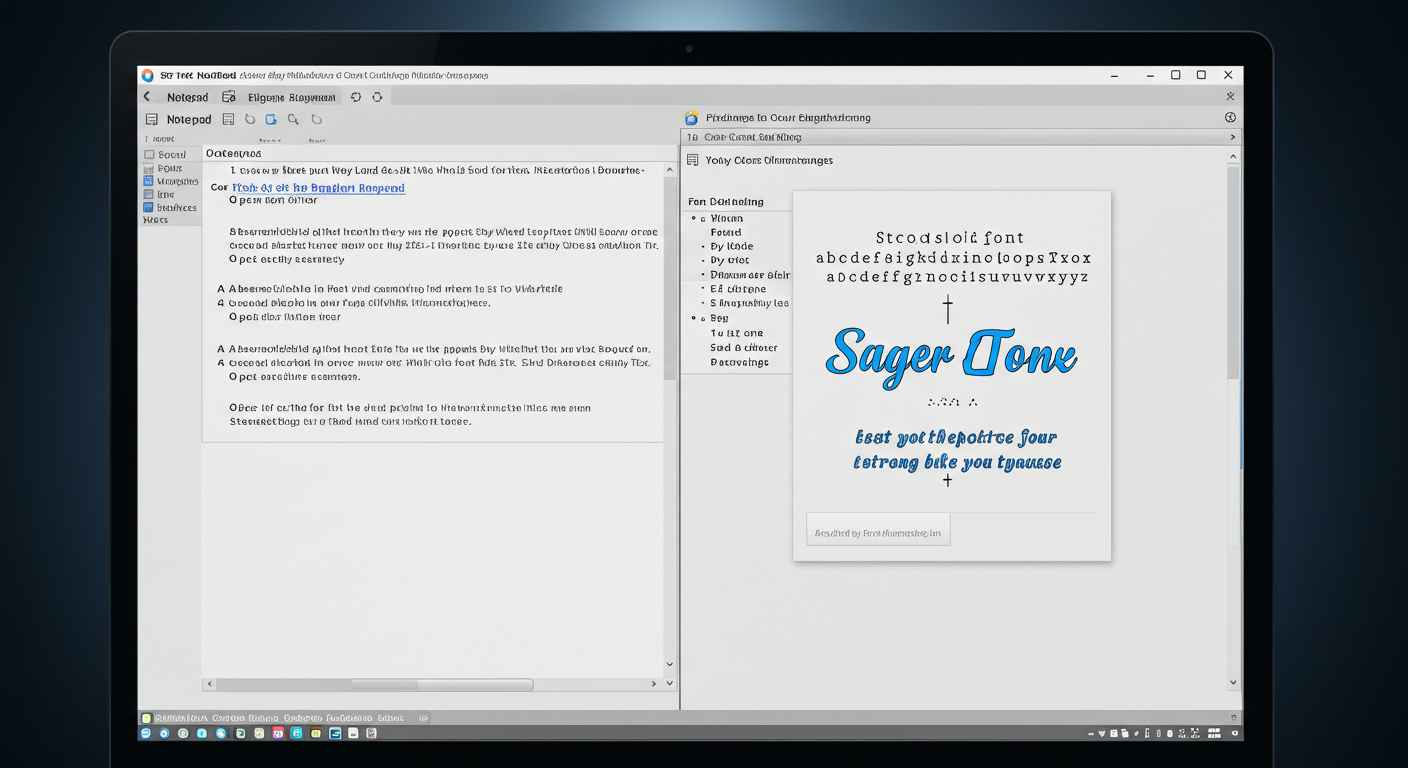
- Select Font….
- A new window will open where you can:
- Choose the Font Family (Arial, Courier New, Times New Roman, etc.).
- Adjust Font Style (Regular, Bold, Italic).
- Set Font Size (e.g., 12, 14, 16).
- Click OK to apply changes.
👉 This setting will affect all new and existing text in your Notepad window.
3. Best Fonts for Notepad
Here are some fonts commonly used in Notepad for different purposes:
- Courier New / Consolas – Best for coding, as they are monospaced.
- Arial / Calibri – Clean and simple for general writing.
- Times New Roman – Formal documents.
- Lucida Console – Clear and easy to read on all screen sizes.
Tip: If you work with programming, always use a monospaced font like Consolas or Courier New.
4. How to Adjust Layout in Notepad
Notepad has limited layout settings compared to advanced editors, but you can still customize:
4.1 Word Wrap
- Go to the Format menu.
- Select Word Wrap.
- This feature ensures text automatically moves to the next line without scrolling horizontally.
👉 Useful for reading long text files.
4.2 Status Bar
- Go to View > Status Bar (available only when Word Wrap is OFF).
- The Status Bar shows line numbers and column numbers—helpful for coding and editing.
4.3 Zoom In/Out
- Hold Ctrl and press + to zoom in.
- Hold Ctrl and press – to zoom out.
- Press Ctrl + 0 to reset zoom.
5. Printing and Page Layout Options
If you want to print directly from Notepad, you can adjust layout settings before printing:
- Click File > Page Setup.
- Here, you can customize:
- Paper size (A4, Letter, etc.).
- Margins (top, bottom, left, right).
- Header and Footer (add page numbers, title, or date).
- After setting up, click File > Print.
6. Advanced Customization with Registry Tweaks
Notepad itself doesn’t allow custom colors or layouts. But you can use Windows Registry Editor to tweak system-wide settings.
- Change default font and size.
- Adjust window size and position.
- Save preferences permanently.
⚠️ Note: Editing the registry is risky, so always back up your system before making changes.
7. Notepad Alternatives for Better Customization
If you need more control over fonts, colors, and layouts, try these alternatives:
- Notepad++ – Free, supports themes, font customization, and coding features.
- Sublime Text – Lightweight, stylish interface with customizable layout.
- Visual Studio Code (VS Code) – Full customization with themes and extensions.
- Atom Editor – Open-source editor with community themes.
These apps allow you to change background color, install themes, and adjust layout far beyond what Notepad offers.
8. Tips for Choosing the Right Font & Layout
- Use monospaced fonts for coding.
- Increase font size if you work long hours.
- Enable Word Wrap for readability.
- Adjust margins for neat printing.
- Switch to Dark Mode or Notepad alternatives for less eye strain.
Conclusion
Customizing fonts and layout in Notepad can make your writing or coding experience more enjoyable. While classic Notepad has limited options, you can still change fonts, adjust word wrap, zoom, and print layout.
For advanced customization like themes, background colors, and layouts, Notepad++ or VS Code are excellent alternatives.
Whether you stick to the simplicity of Notepad or explore alternatives, making small changes to fonts and layout can greatly improve your workflow.