Introduction
Notepad may look like a very simple text editor, but with the right approach, you can use it for more than just writing plain notes. One of the smartest ways to increase productivity in Notepad is by creating custom templates.
Thank you for reading this post, don't forget to subscribe!Templates allow you to save time by reusing a standard format for tasks like writing letters, coding, creating lists, or drafting documents. Instead of starting from scratch every time, you can open a ready-made file and just edit the content.
In this article, we’ll explain step by step how to create, save, and use custom templates in Notepad effectively.
What is a Template in Notepad?
A template is a pre-made file that contains a structure or layout you can reuse. Since Notepad only supports plain text, templates here are not like fancy styled documents in Word. Instead, they are simple text-based files that give you a starting point.
Examples of Notepad templates include:
- A daily to-do list format.
- A journal entry structure.
- A letter or email draft format.
- Coding templates for HTML, CSS, or batch files.
Benefits of Using Custom Templates in Notepad
- Saves Time – No need to type the same structure again and again.
- Consistency – Keeps your notes and files uniform.
- Productivity – Speeds up daily tasks like making lists or reports.
- Easy Editing – Simple to update as per your needs.
- Lightweight – Works on any computer without extra software.
Step-by-Step Guide: Creating Custom Templates in Notepad
Step 1: Open Notepad
- Press
Windows + Sand type Notepad. - Click to open the app.
Step 2: Create Your Template Layout
Type the structure you want to reuse. For example:
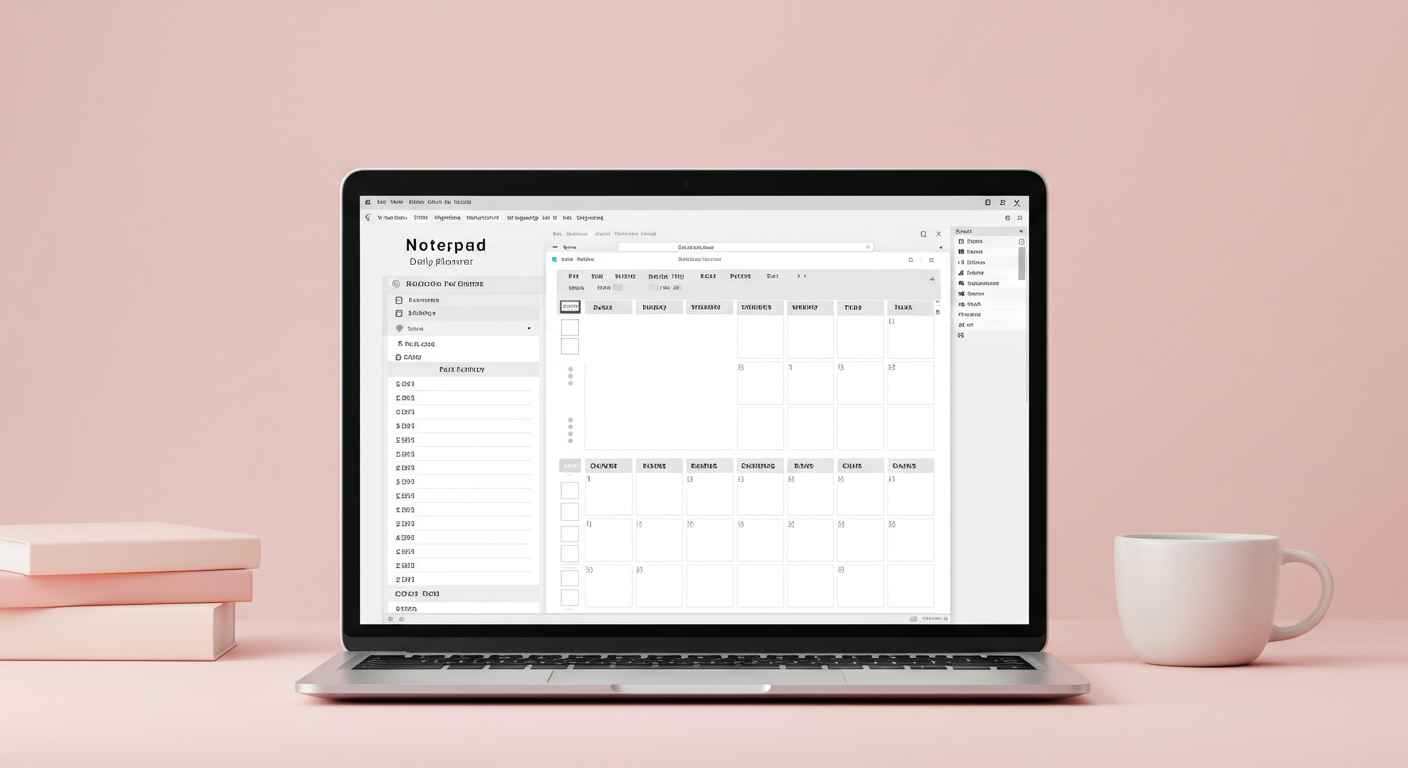
Daily To-Do List Template
Date: ___________

Tasks:
1.
2.
3.
4.
5.

Notes:
-
Journal Entry Template
Date: ___________

Mood Today: ___________

Highlights of the Day:
-
-

Things I Learned:
-
HTML Starter Template
<!DOCTYPE html>
<html>
<head>
    <title>My Website</title>
</head>
<body>

<h1>Welcome</h1>
<p>This is my first template in Notepad.</p>

</body>
</html>
Step 3: Save the File as a Template
- Go to File → Save As.
- Choose a folder where you want to keep templates (e.g., “Templates” folder in Documents).
- Give the file a name like
ToDo_Template.txtorHTML_Template.html. - Click Save.
Step 4: Reuse the Template
- Whenever you need it, open the saved template file.
- Use Save As to make a new copy with today’s date or project name.
- Fill in details without losing your original template.
Examples of Useful Notepad Templates
1. Meeting Notes Template
Meeting Date: ___________

Participants: ___________

Agenda:
1.
2.
3.

Decisions Taken:
-

Action Items:
- [ ] Assigned to: ________
- [ ] Assigned to: ________
2. Letter Template
[Your Name]
[Your Address]
[City, ZIP Code]

Date: ___________

[Receiver’s Name]
[Receiver’s Address]

Dear [Receiver’s Name],

[Body of the letter goes here...]

Sincerely,
[Your Name]
3. Batch Script Template (Windows Automation)
@echo off
:: Batch Script Template
:: Created on: %date%

echo Starting the process...
REM Add your commands here
pause
Tips for Managing Templates in Notepad
- Create a dedicated folder named Notepad Templates in your Documents.
- Use clear names like
Journal_Template.txt,Letter_Template.txt,Script_Template.bat. - Keep backups of your templates on cloud storage (Google Drive, OneDrive, Dropbox).
- If you use templates regularly, create a desktop shortcut for quick access.
Limitations of Templates in Notepad
While templates are useful, Notepad has some limitations:
- No formatting (bold, underline, images).
- No built-in template manager (manual saving required).
- Limited for advanced document creation.
👉 For more advanced template management, you can use Notepad++, which supports plugins and syntax highlighting.
When Should You Use Notepad Templates?
- Daily task lists or reminders.
- Drafting letters and emails.
- Writing code snippets.
- Simple record-keeping (like expenses or logs).
- Creating structured notes for studies.
If you need professional templates with formatting, tools like Word, Google Docs, or Excel are better options. But for simplicity and speed, Notepad templates are unbeatable.
Conclusion
Creating custom templates in Notepad is an easy yet powerful way to save time and stay organized. Whether you need a simple daily planner, journal entry structure, meeting notes, or coding starter files, Notepad can handle it all.
By following the steps above, you can set up your own templates and reuse them whenever needed. It’s a lightweight, distraction-free solution that works for students, professionals, and even programmers.
So, the next time you open Notepad, don’t just start typing randomly—create a template once and make your work faster, easier, and more consistent.