Introduction
Managing daily tasks is important whether you are a student, professional, or just someone who wants to stay organized. While there are many modern apps for making to-do lists, sometimes simple is better. One of the easiest ways to create and manage tasks is by using Notepad, a lightweight text editor that comes pre-installed with every Windows computer.
Thank you for reading this post, don't forget to subscribe!In this article, we will show you step-by-step how to create a simple to-do list in Notepad, organize it effectively, and even add some tricks to make it more useful.
Why Use Notepad for To-Do Lists?
You might wonder—why use Notepad when apps like Microsoft To Do, Google Keep, or Trello exist?
Here are some good reasons:
- ✅ No installation needed – Notepad comes free with Windows.
- ✅ Lightweight & fast – Opens instantly, even on old PCs.
- ✅ Distraction-free – No notifications or complicated features.
- ✅ Customizable – You can design your to-do list however you like.
- ✅ Offline – Works without the internet.
Step 1: Open Notepad
- Press Windows Key + S to open search.
- Type Notepad and press Enter.
- A blank window will appear, ready to use.
🔹 Step 2: Write Your Tasks
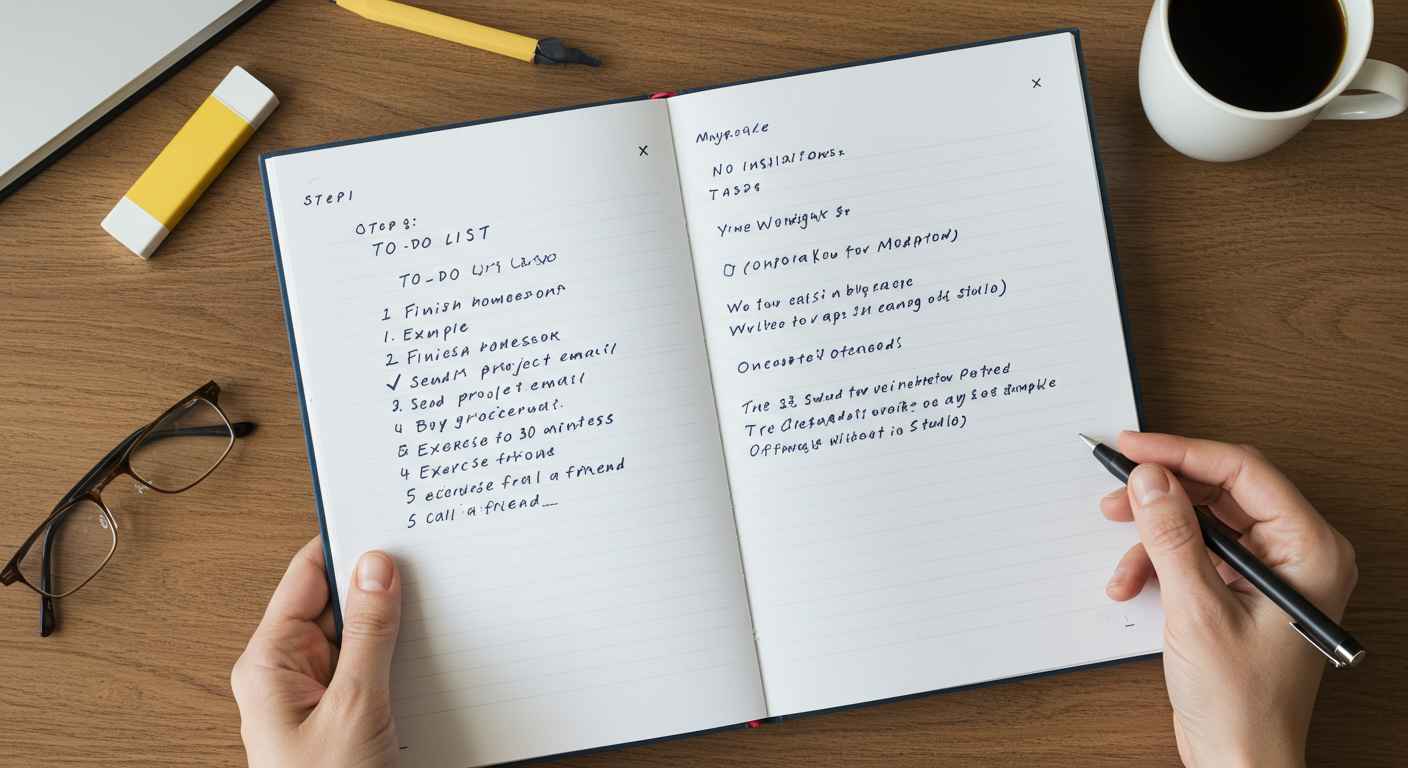
Start listing your tasks one by one. Example:
TO-DO LIST
-----------
1. Finish homework
2. Send project email
3. Buy groceries
4. Exercise for 30 minutes
5. Call a friend
This is your basic to-do list.
Step 3: Add Checkboxes (Manual Method)
Since Notepad doesn’t have built-in checkboxes, you can use symbols like [ ] for pending tasks and [x] for completed tasks.
Example:
TO-DO LIST
-----------
[ ] Finish homework
[x] Send project email
[ ] Buy groceries
[x] Exercise for 30 minutes
[ ] Call a friend
👉 Whenever you finish a task, simply change [ ] to [x].
Step 4: Organize Tasks by Category
If you have many tasks, divide them into sections like Work, Personal, and Study.
Example:
TO-DO LIST
-----------

Work:
[ ] Send project email
[ ] Prepare presentation

Personal:
[ ] Buy groceries
[ ] Call a friend

Study:
[x] Finish homework
[ ] Read 20 pages of book
👉 This makes it easy to track what belongs where.
🔹 Step 5: Add Dates and Deadlines
You can also add dates using F5 (shortcut to insert date & time).
Example:
TO-DO LIST – 30 September 2025
------------------------------
[ ] Submit report (Deadline: Oct 2)
[ ] Grocery shopping (Today)
[ ] Call mom (Tomorrow)
👉 This helps you prioritize urgent tasks.
Step 6: Save Your To-Do List
- Click File > Save As.
- Choose a folder (e.g., Desktop or Documents).
- Give it a name like
ToDoList.txt. - Select Save as type: All Files if you want custom extensions.
Now your list is saved and can be opened anytime.
Step 7: Update Regularly
- Open the file daily.
- Mark completed tasks with
[x]. - Add new tasks at the bottom.
- Delete unnecessary tasks to keep it clean.
👉 Treat it like a digital notebook.
Bonus Trick 1: Make a Daily Log
Use the LOG feature in Notepad.
- At the top of your file, type
LOG. - Save and reopen the file.
- Every time you open it, the current date & time will be added automatically.
This allows you to track when you updated your tasks.
Bonus Trick 2: Create Multiple Lists
Instead of one long file, you can create:
- WorkToDo.txt
- PersonalToDo.txt
- StudyToDo.txt
👉 This keeps your lists organized and easier to manage.
Bonus Trick 3: Use Symbols for Priority
You can add symbols to highlight task importance:
(!)= Urgent(+)= High priority(-)= Low priority
Example:
TO-DO LIST
-----------
[ ] (!) Submit tax documents
[ ] (+) Prepare for meeting
[ ] (-) Clean desk
Advanced Option: Turn To-Do List into a Batch File
If you know a little scripting, you can create a .bat file that opens your to-do list quickly.
Code Example:
@echo off
notepad.exe "C:\Users\YourName\Documents\ToDoList.txt"
Save as OpenList.bat. Double-clicking it will open your list instantly.
Conclusion
Creating a to-do list in Notepad is simple yet powerful. While it may not have the advanced features of modern apps, it is fast, distraction-free, and fully customizable. By using checkboxes, categories, deadlines, and a bit of creativity, you can turn Notepad into your personal productivity tool.
So next time you think of downloading a heavy app, just open Notepad and start writing!


