Introduction
For years, Microsoft Notepad remained a very simple text editor with almost no customization options. It was always the same—white background with black text. While it was great for quick notes and editing text files, many users found the bright white background uncomfortable, especially when working at night.
Thank you for reading this post, don't forget to subscribe!With the latest versions of Windows 10 and Windows 11, Microsoft finally introduced Dark Mode support for Notepad. Dark Mode not only makes the interface modern and stylish but also reduces eye strain, saves battery on laptops, and improves focus.
In this article, we’ll guide you step by step on how to enable Dark Mode in Notepad easily, along with some alternative methods if your Windows version doesn’t support it.
1. Why Use Dark Mode in Notepad?
Dark Mode is not just a visual upgrade—it comes with real benefits:
- ✅ Reduces eye strain when working in low light.
- ✅ Improves readability for long coding or writing sessions.
- ✅ Saves battery life on OLED/AMOLED laptop screens.
- ✅ Modern look compared to the old plain white interface.
- ✅ Focus-friendly environment with less distraction.
2. How to Enable Dark Mode in Notepad (Windows 11)
Windows 11 comes with built-in support for Dark Mode in Notepad.
Steps to Enable Dark Mode:
- Open Notepad.
- Click on the Settings (gear icon) at the top right.
- Under App Theme, choose Dark.
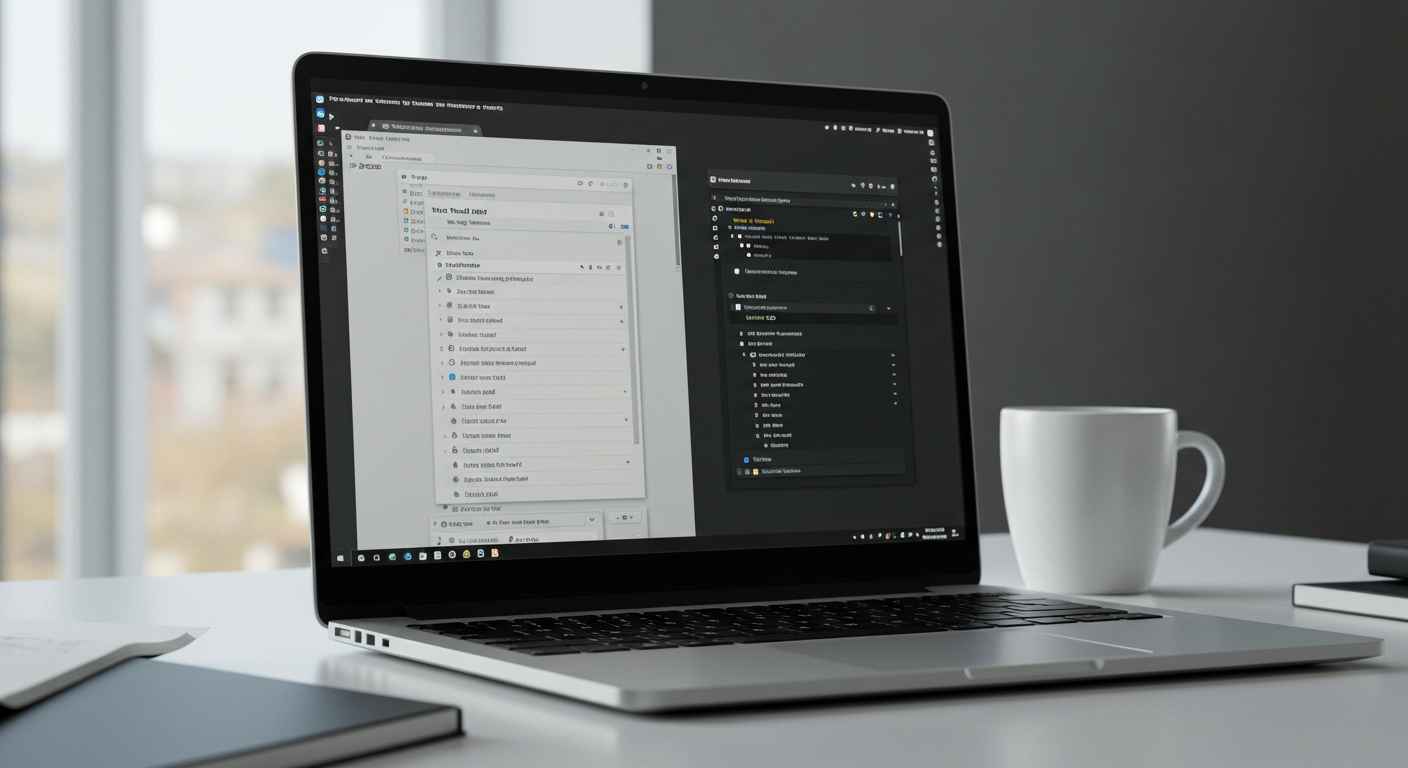
- Instantly, your Notepad will switch to a dark background with light text.
👉 Tip: You can also choose Use system setting, so Notepad automatically switches between light and dark depending on your Windows theme.
3. How to Enable Dark Mode in Notepad (Windows 10)
On Windows 10, Dark Mode works slightly differently because the old Notepad app doesn’t have built-in theme support. Instead, you have to enable system-wide Dark Mode.
Steps:
- Go to Settings > Personalization > Colors.
- Under Choose your color, select Dark.
- This will turn on Dark Mode for supported apps, including Notepad (if you are on the latest version).
⚠️ Note: On older Windows 10 builds, classic Notepad may not support dark mode. In that case, you’ll need to use alternative methods (explained below).
4. Alternative Method: Use Notepad Alternatives with Dark Mode
If your version of Notepad does not support Dark Mode, you can switch to a Notepad alternative that offers full theme customization.
Popular Choices:
- Notepad++
- Go to Settings > Style Configurator.
- Choose a built-in dark theme or create your own.
- Sublime Text
- Dark Mode is enabled by default.
- You can install custom color schemes.
- Visual Studio Code (VS Code)
- Go to File > Preferences > Color Theme.
- Choose from hundreds of dark themes.
- Atom Editor
- Install community themes for dark backgrounds.
👉 These editors provide more control over fonts, colors, and layouts compared to classic Notepad.
5. Method: Registry Tweak (Advanced Users)
If you’re using an older Windows version and want to force darker UI colors, you can use a Windows Registry tweak.
⚠️ Caution: Editing the registry incorrectly can harm your system. Always create a backup before changes.
Steps:
- Press Win + R, type
regedit, and hit Enter. - Navigate to:
HKEY_LOCAL_MACHINE\SOFTWARE\Microsoft\Notepad - Look for keys related to theme or colors (depends on version).
- Change values to enable dark backgrounds.
- Restart your PC.
👉 This method is not guaranteed for all builds, so using alternatives like Notepad++ is safer.
6. Customize Dark Mode Appearance in Notepad++
Notepad++ is one of the most popular Notepad replacements. If you want dark mode with custom styling, follow these steps:
- Download and install Notepad++.
- Open the app and click on Settings > Style Configurator.
- Choose a theme (e.g., Obsidian, Deep Black, Twilight).
- You can also customize background and text colors manually.
- Save the settings and enjoy Dark Mode.
7. Troubleshooting Dark Mode Issues
Sometimes, users face problems where Dark Mode does not apply properly. Common fixes include:
- Update Windows – Install the latest updates to get the new Notepad version.
- Check Microsoft Store – On Windows 11, Notepad updates via Microsoft Store.
- Reinstall Notepad – If it’s missing or outdated, reinstall from the Store.
- Use Alternatives – If your system doesn’t support Dark Mode, use Notepad++ or VS Code.
8. Quick Comparison
| Feature | Classic Notepad | Notepad (Windows 11) | Notepad++ |
|---|---|---|---|
| Dark Mode | Not supported (old) | Yes (built-in toggle) | Yes (multiple themes) |
| Custom Themes | No | Limited | Full control |
| Ease of Use | Very simple | Simple | Slightly advanced |
| Best For | Quick notes | Notes, editing text | Coding, customization |
Conclusion
Enabling Dark Mode in Notepad is now easier than ever, especially on Windows 11, where it comes built-in. Windows 10 users can use system-wide dark settings, while those on older builds can switch to Notepad alternatives like Notepad++ or Sublime Text for a full dark theme experience.
Whether you’re coding, writing, or just editing text files, Dark Mode makes Notepad more comfortable and modern. If you haven’t tried it yet, give it a go—it might completely change the way you use Notepad!